

AI Integration Quick Reference
AI Integration Quick Reference
Instant Messaging
Real-time text messaging — users can send and receive instant messages.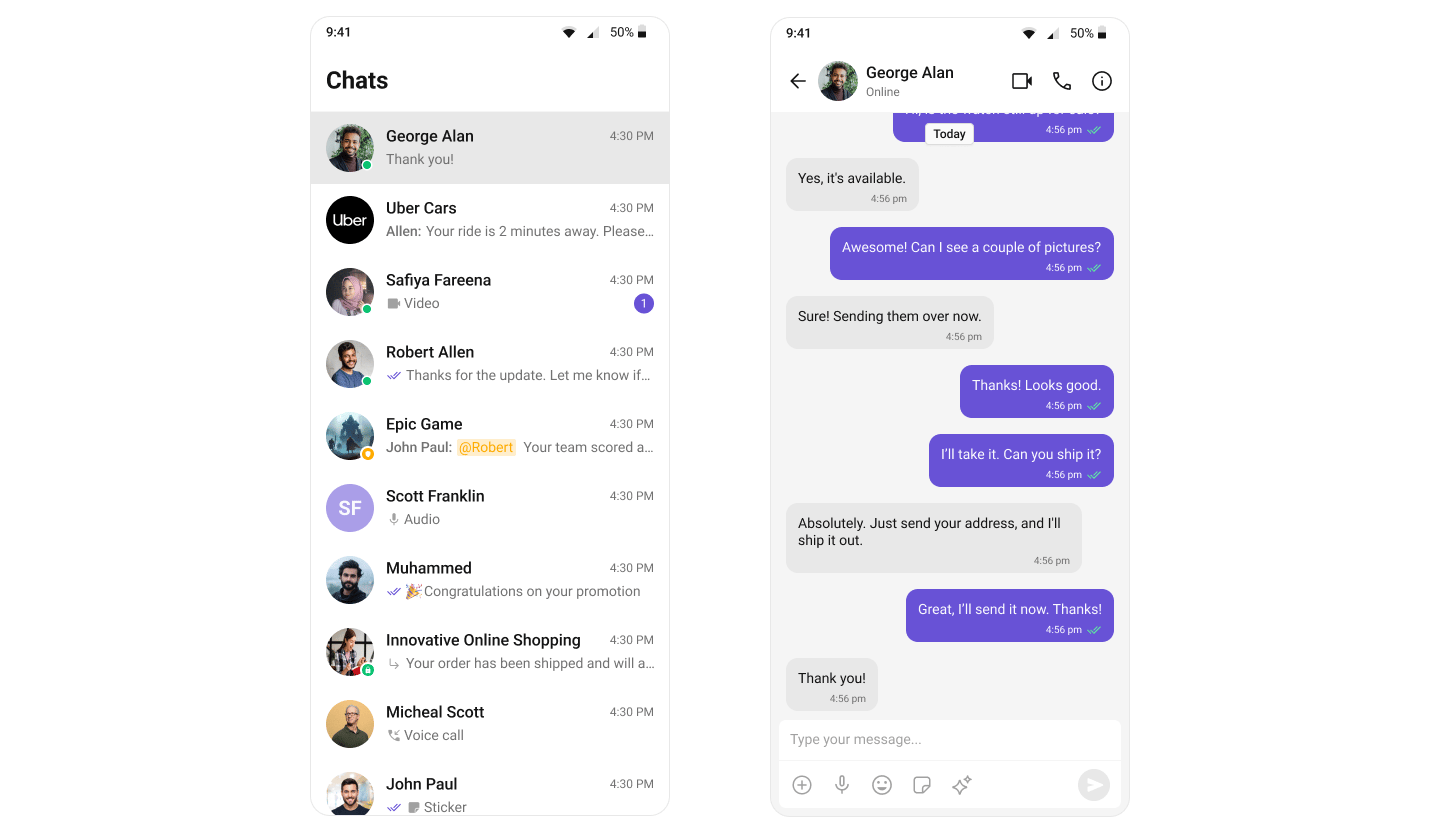
Media Sharing
Share multiple images, videos, audio files, and documents in a single send. Tapping the attachment button opens a multi-select picker; the picks stage in a preview tray above the input box with per-file upload progress, and send together with an optional caption — all out of the box.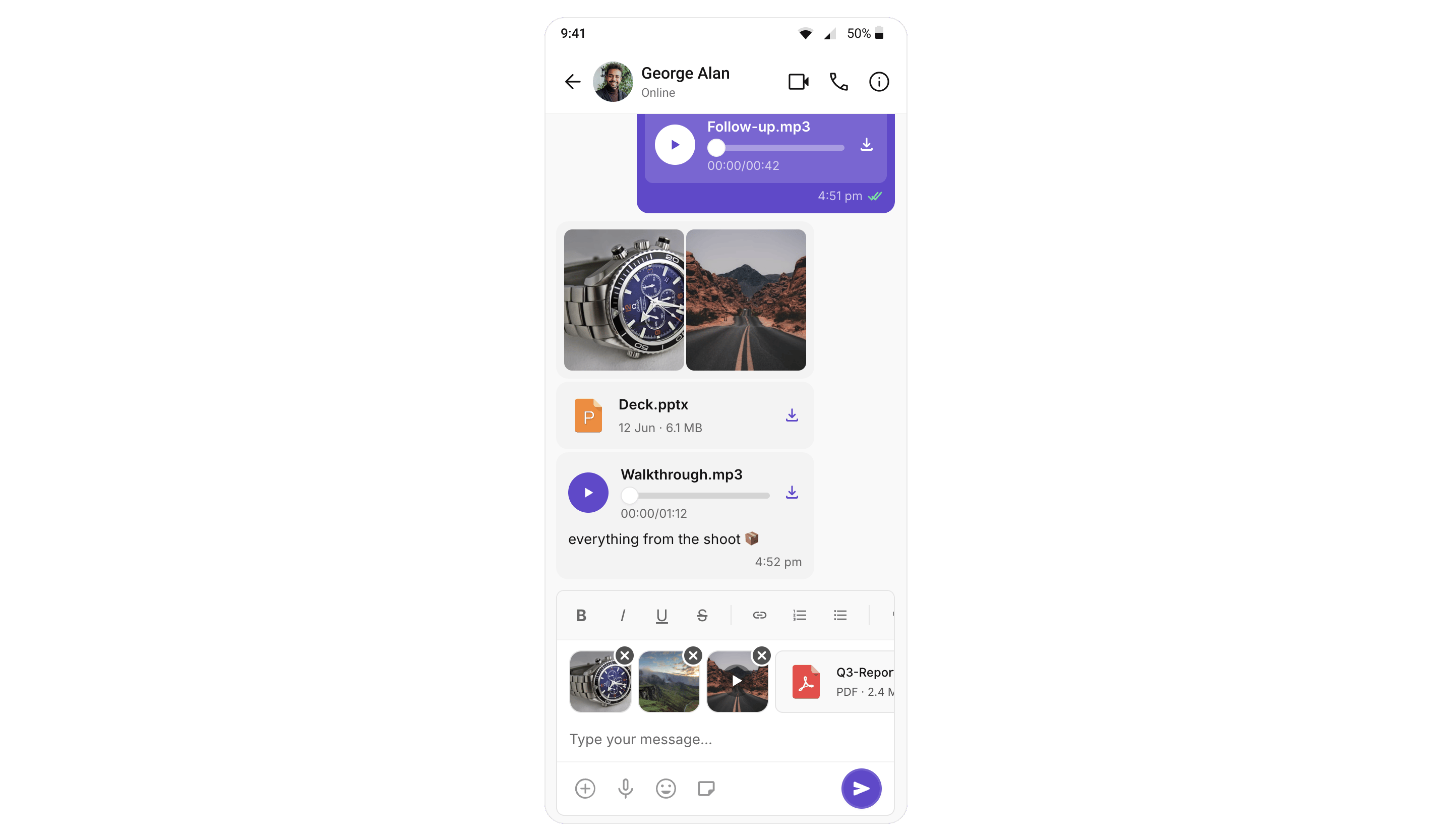
A mixed pick is split into one message per attachment type (images → videos → audios → files) that render as grouped bubbles: an image/video grid, a stacked audio player list, and a connected file card stack. Per-message file count and per-file size limits come from your app’s dashboard settings.
Supported media types:
Read Receipts
Visibility into message status — delivered and read indicators.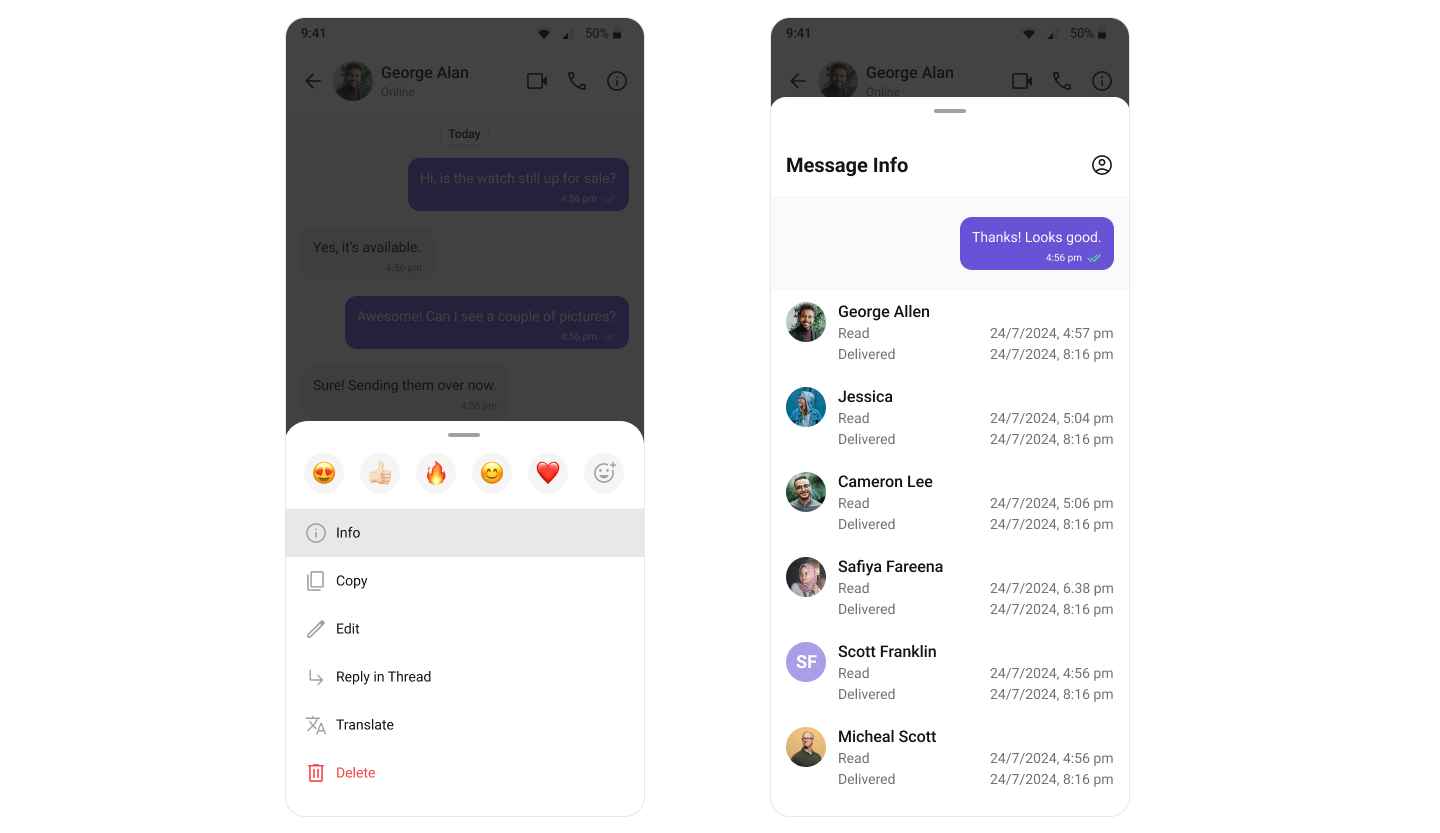
Mark as Unread
Users can manually mark messages as unread to revisit important conversations later. The message list can start from the first unread message automatically.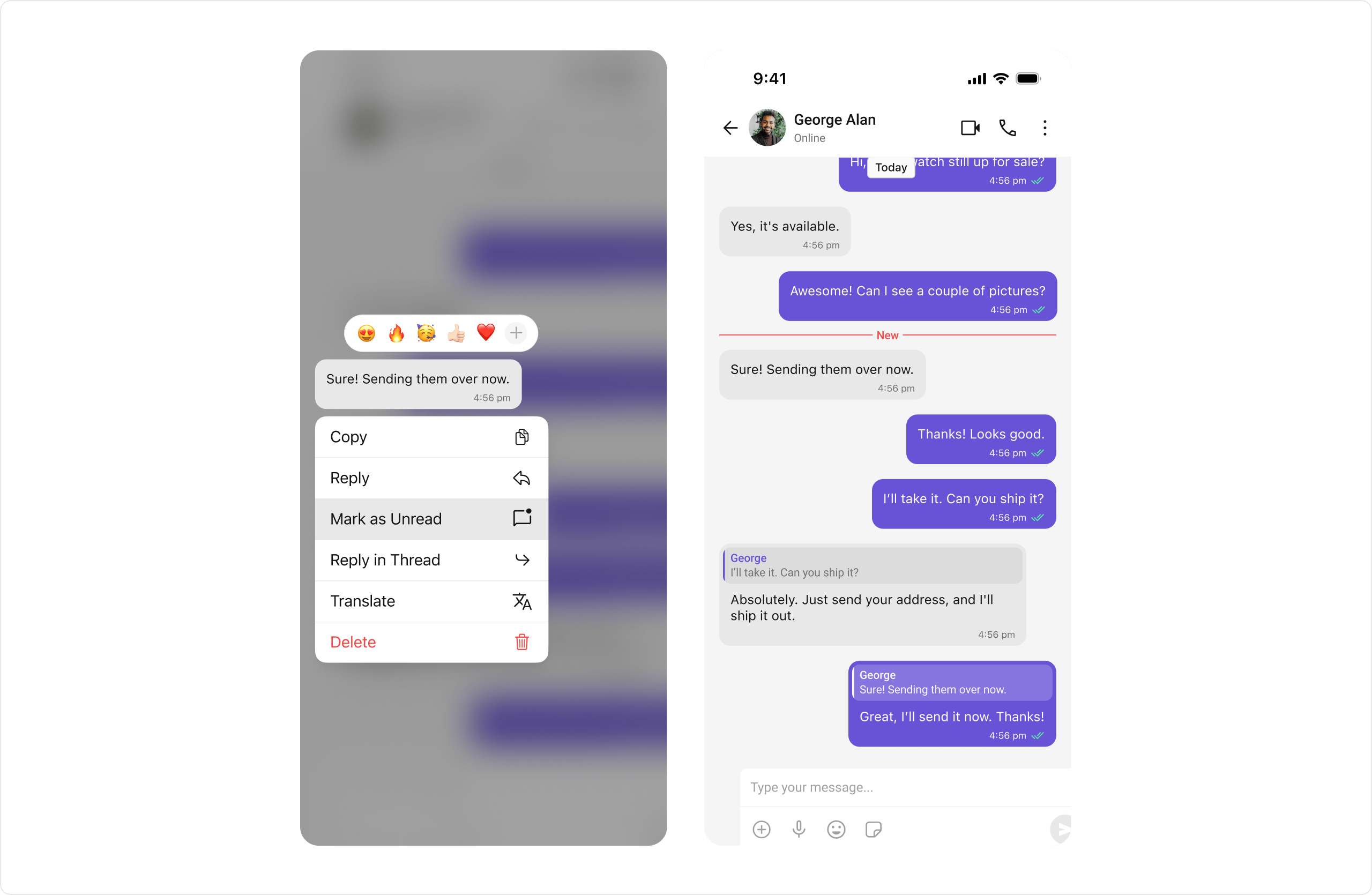
Typing Indicators
Shows when a user is typing a response in real-time.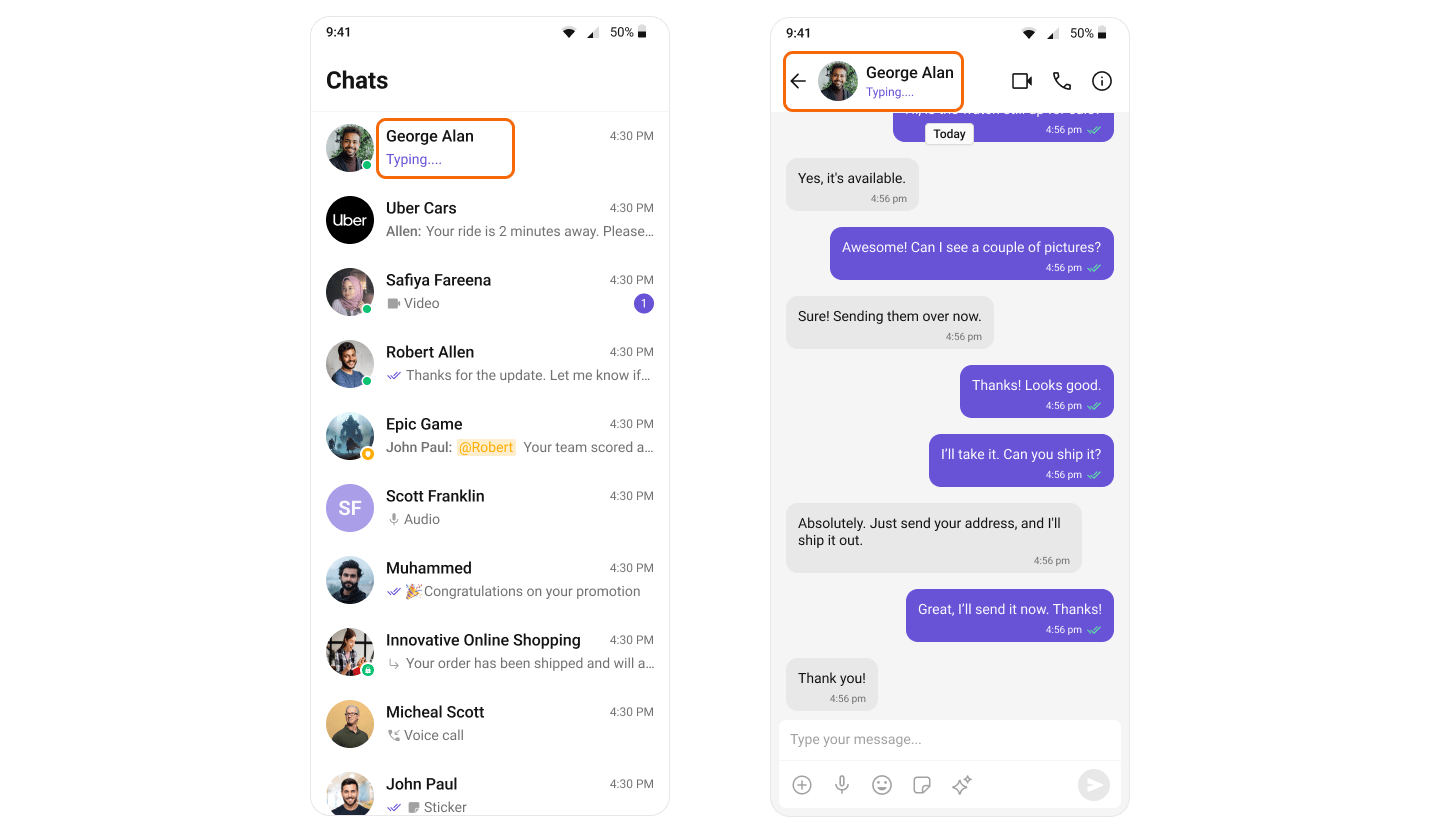
User Presence
See whether contacts are online or offline.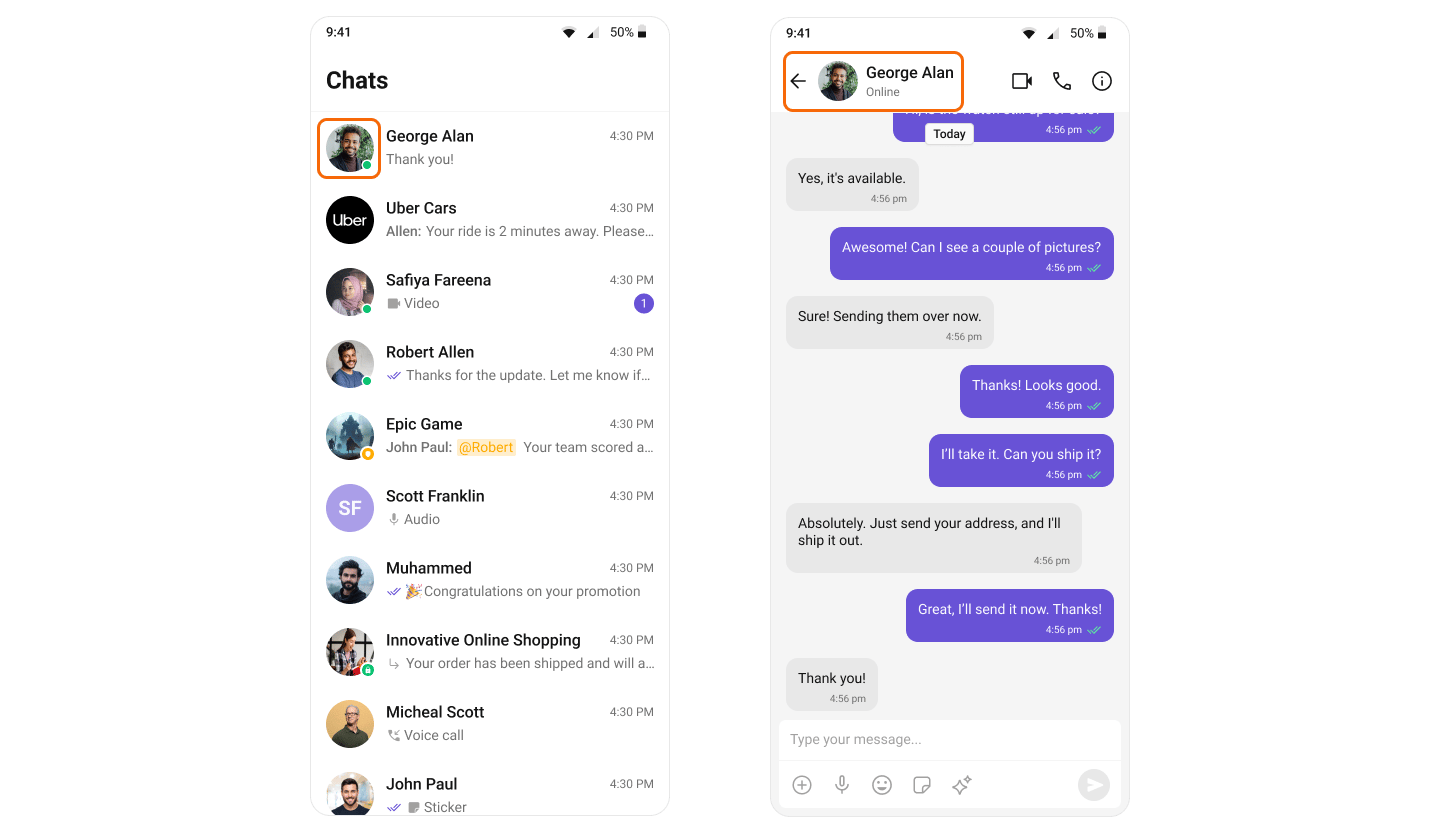
Reactions
React to messages with emojis without typing a full response.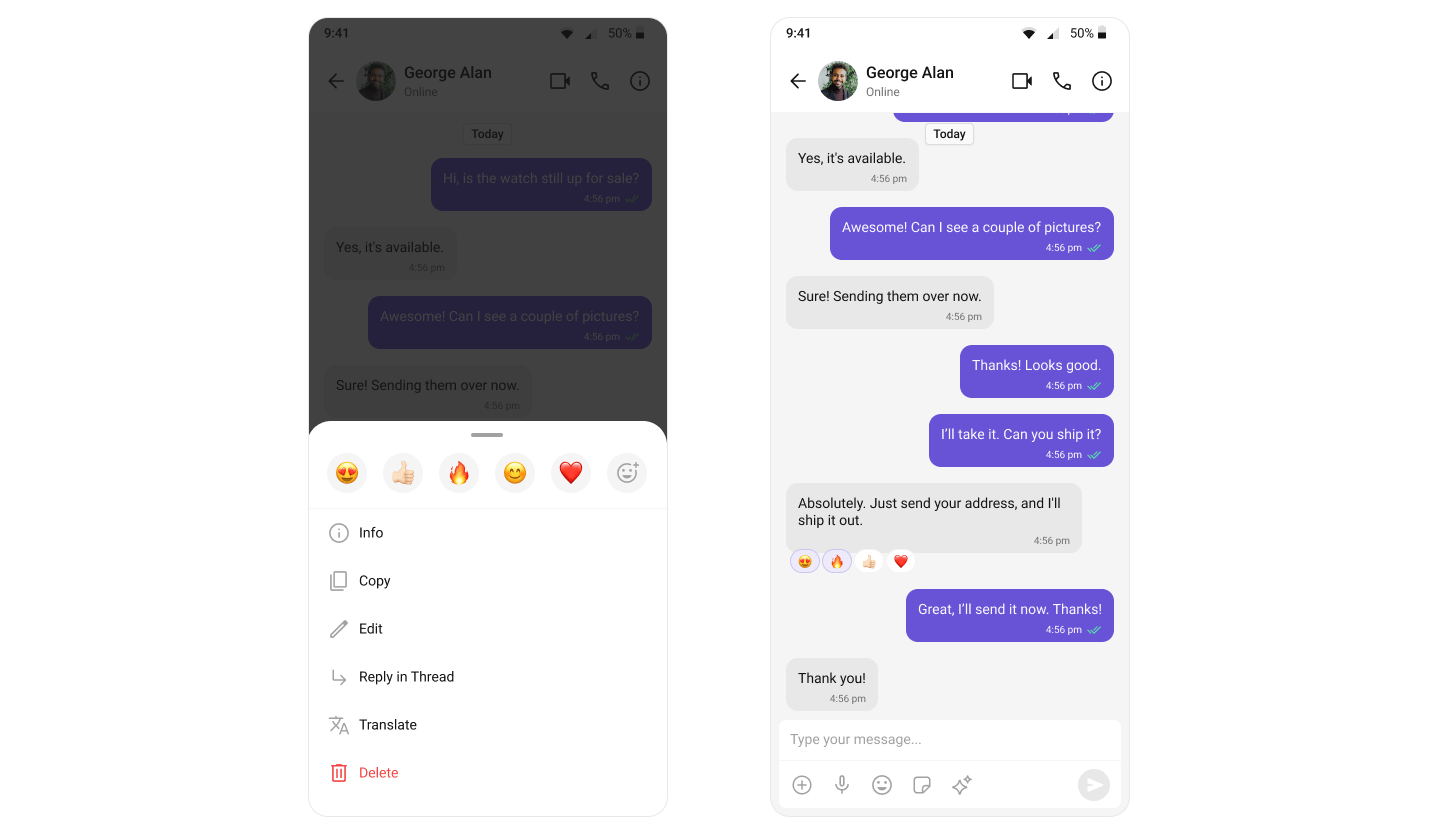
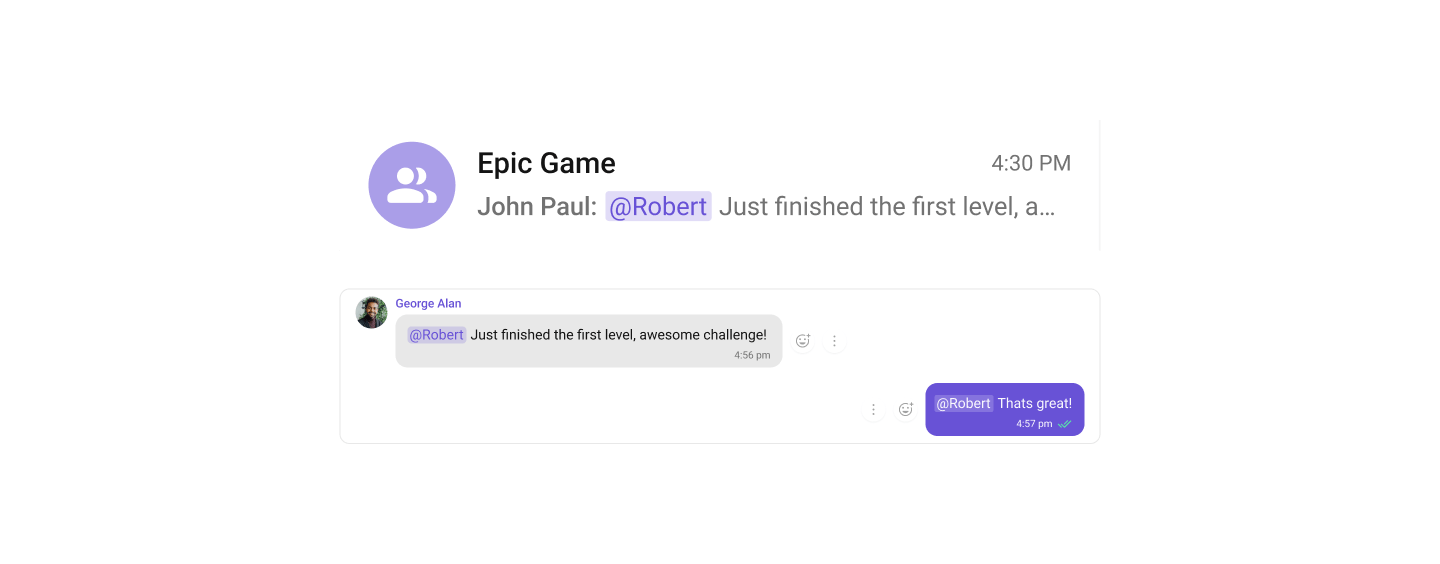
Mentions
Address specific users in a conversation by typing@ to trigger mention suggestions.
Pin & Save Messages
Keep important messages in reach. Pinning highlights a message for everyone in the conversation; saving bookmarks it privately for the acting user, across all of their conversations. Both come with action-sheet options, bubble indicators, and dedicated full-screen views.
See the Pin & Save Messages guide for end-to-end wiring.
Pin Conversations
Keep the chats that matter at the top. Users pin a conversation from the long-press menu; pinned conversations show a pin indicator and stay above the rest of the list.Rich Text Formatting
Rich Text Formatting allows users to style their messages with bold, italic, strikethrough, code, code blocks, blockquotes, ordered/unordered lists, and links. This brings richer expression to conversations and helps users emphasize key points.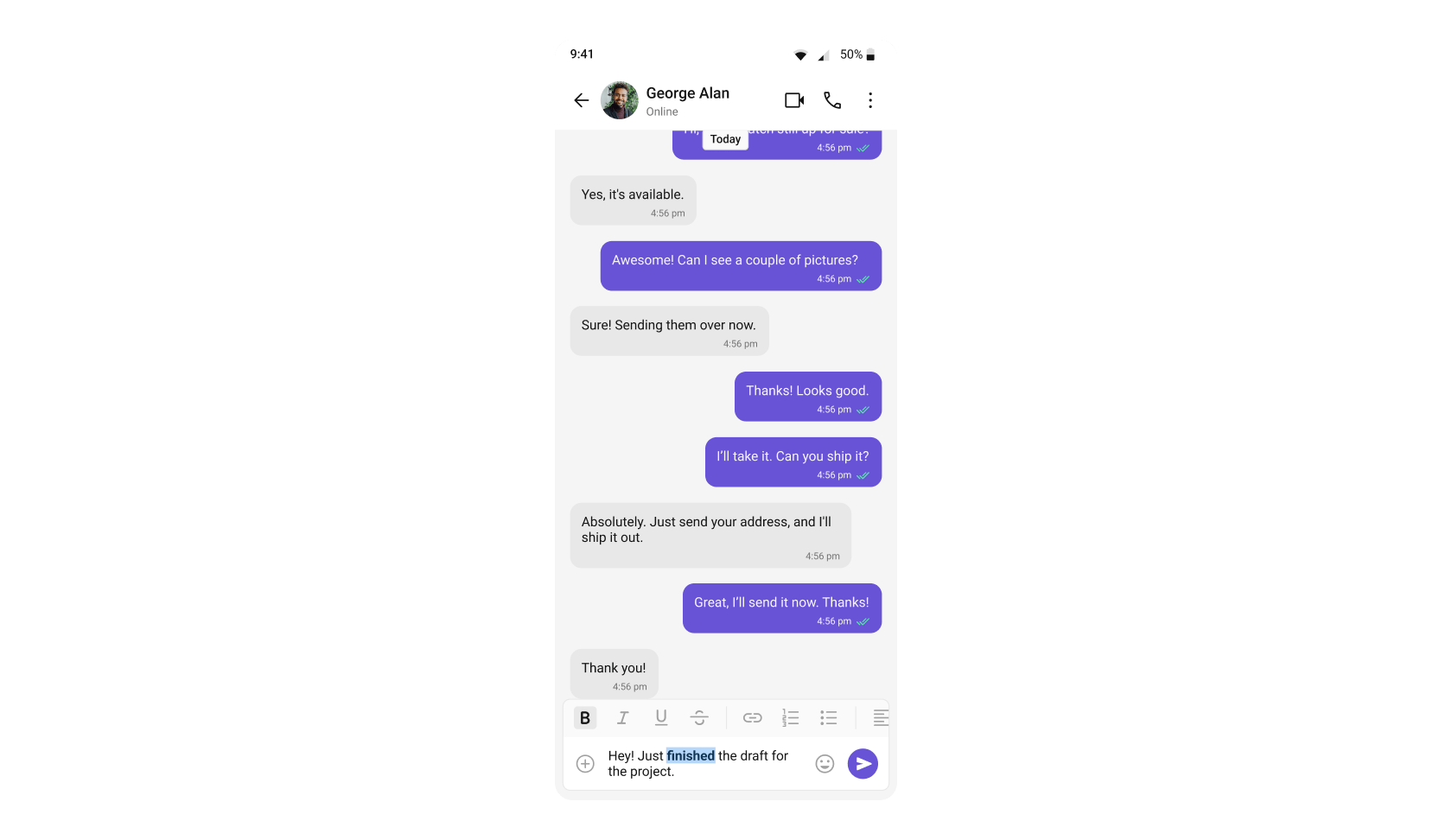
Threaded Conversations
Respond directly to a specific message, keeping conversations organized.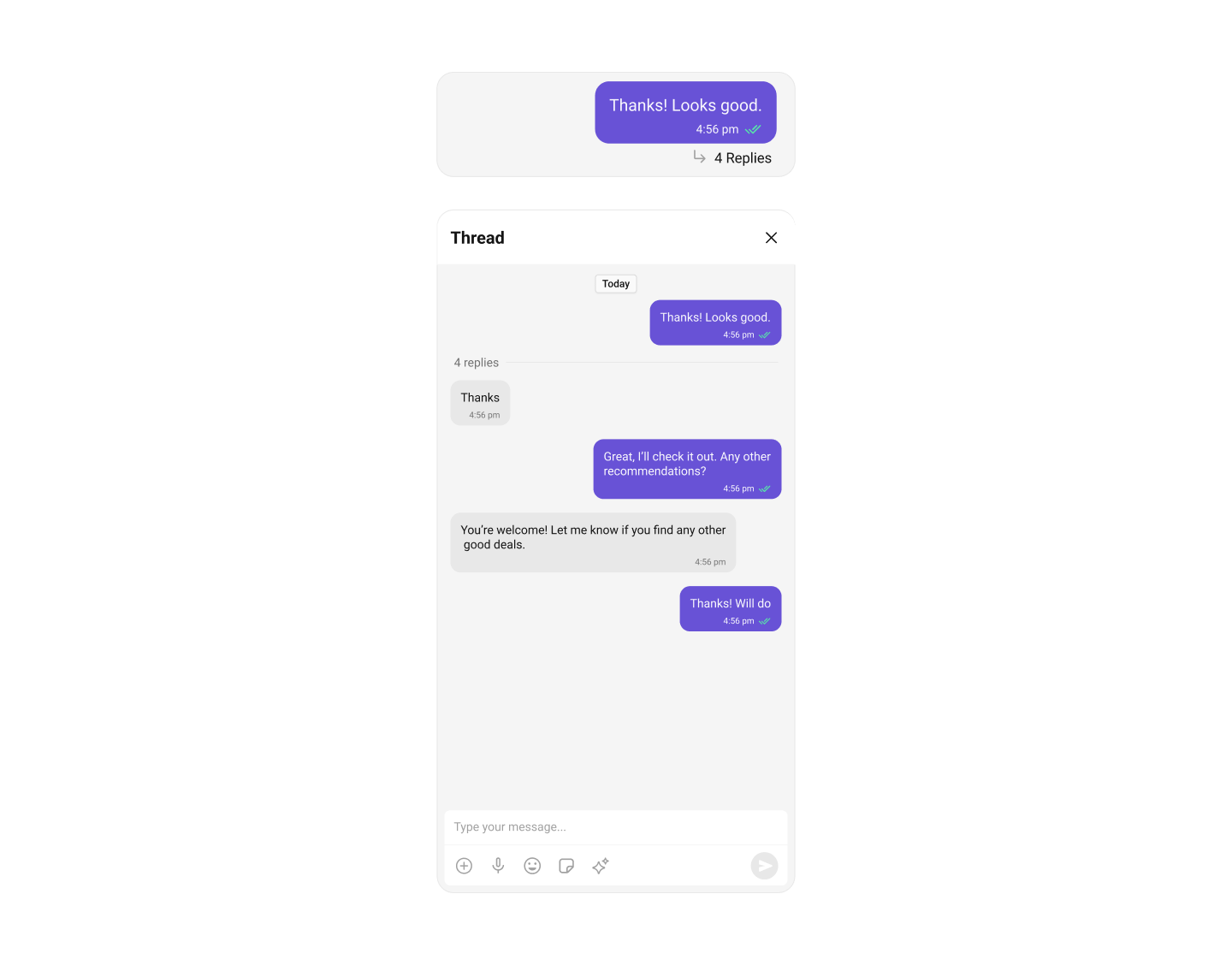
Thread Subscription
Let users subscribe to or unsubscribe from a thread to control whether its replies notify them. Opt-in feature — enable it withUIKitSettings.setEnableThreadSubscription(true).
See the Thread Subscription guide for setup and behavior.
Quoted Replies
Reply to specific messages by selecting “Reply” from the message action menu, maintaining context in the conversation.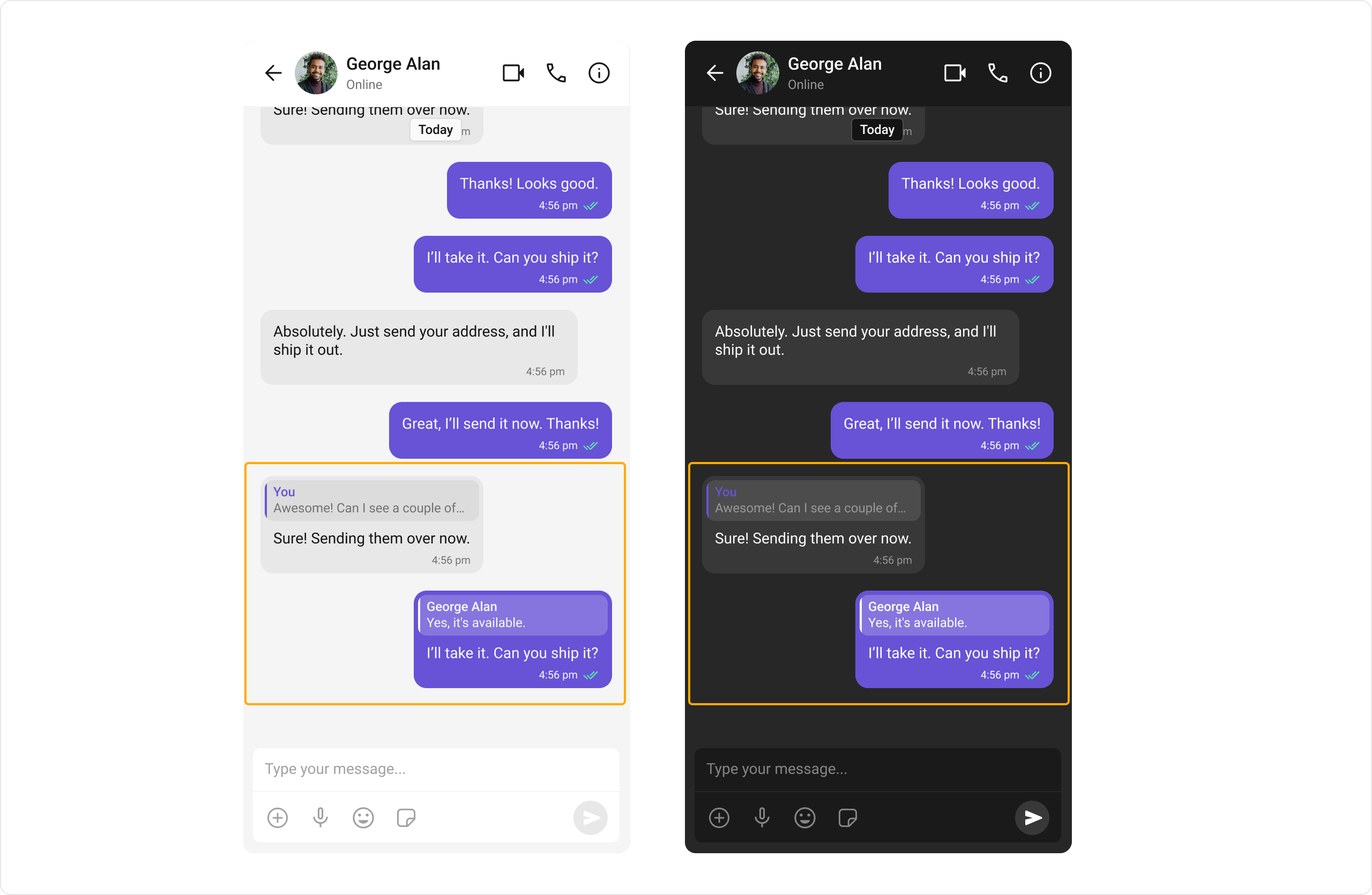
Group Chats
Conversations with multiple participants — team collaborations, group discussions, and communities.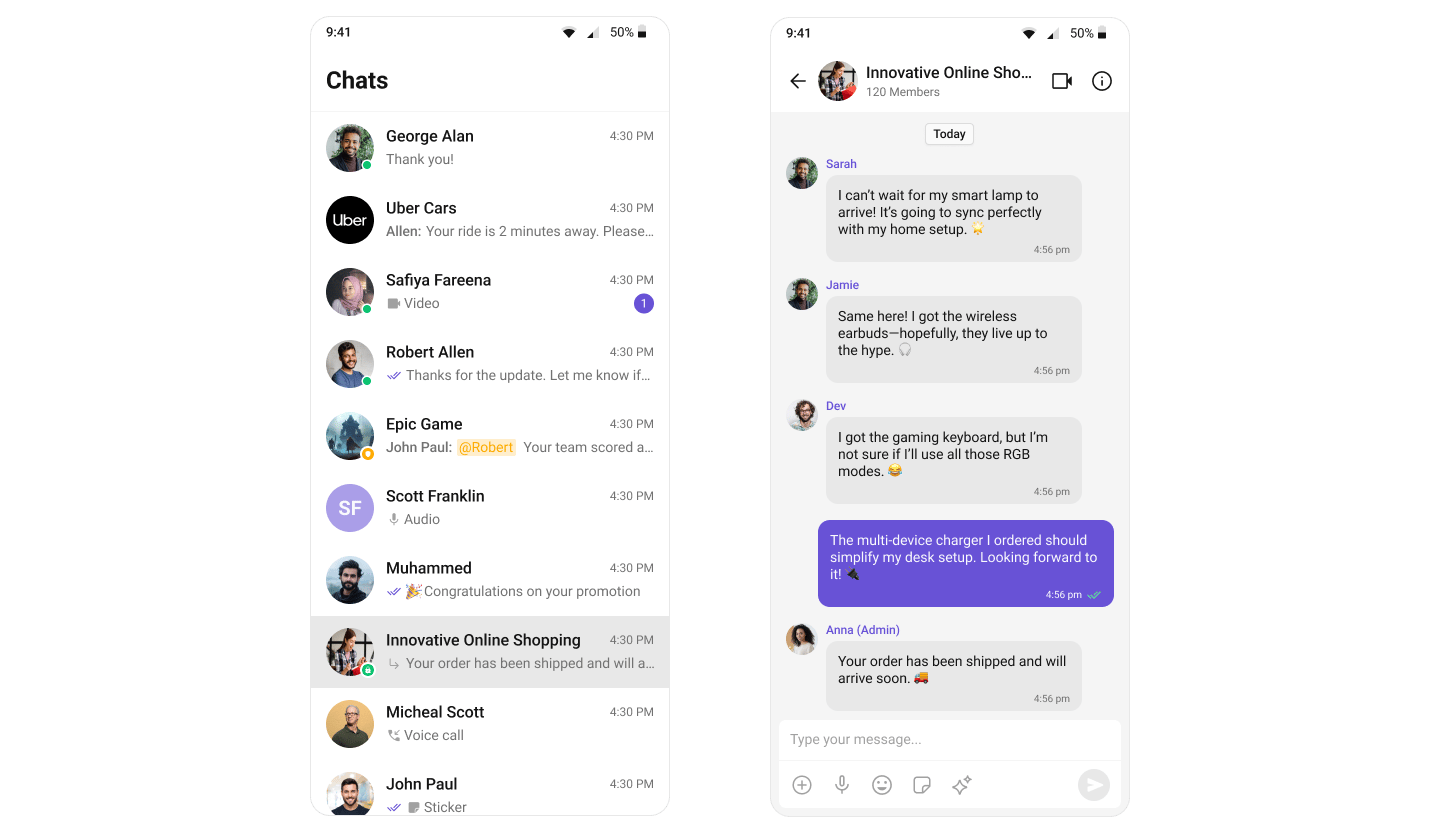
Moderation
Automatically filter and manage inappropriate content based on predefined rules.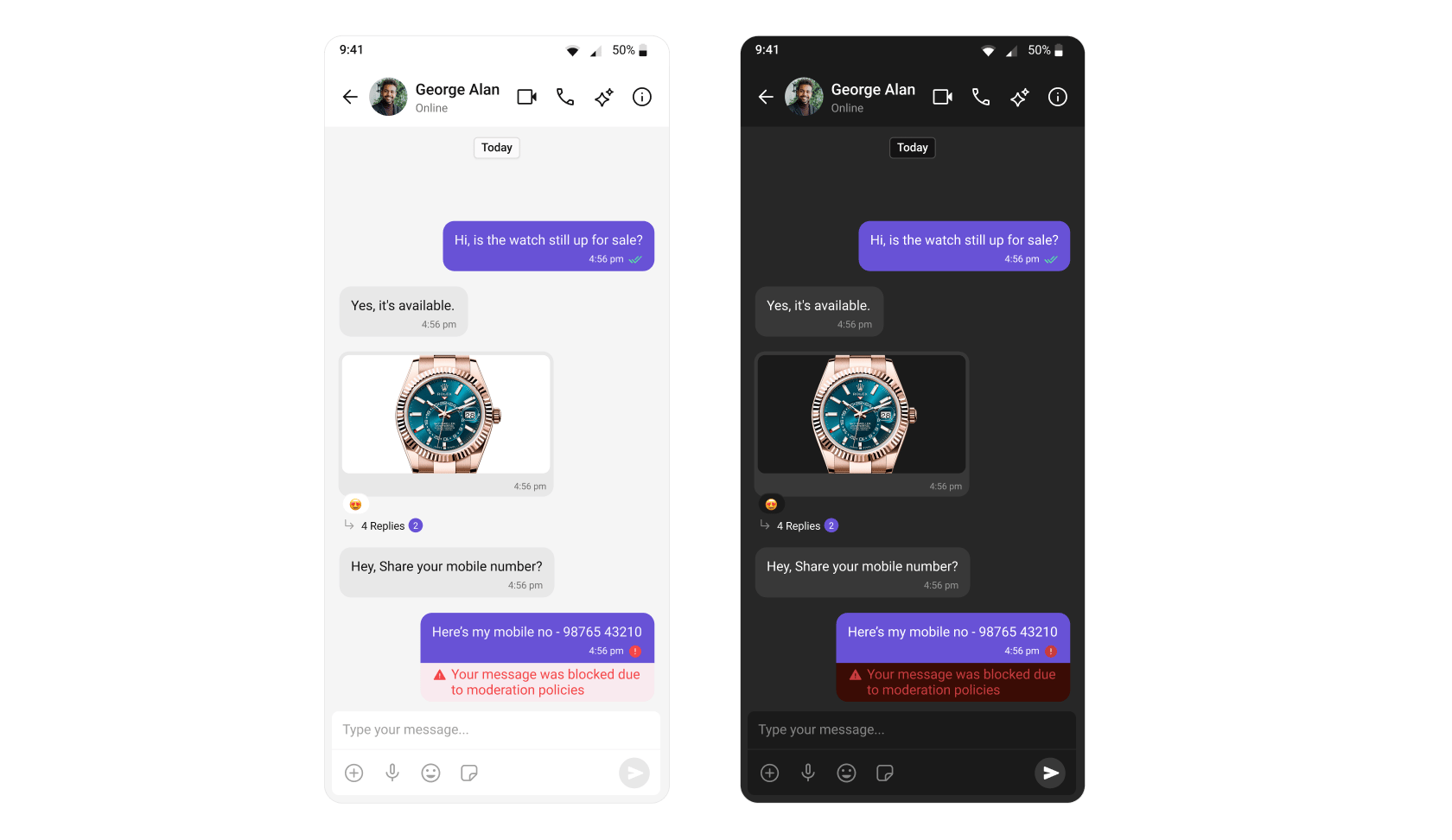
Learn more about setting up moderation rules in the Moderation documentation.
Report Message
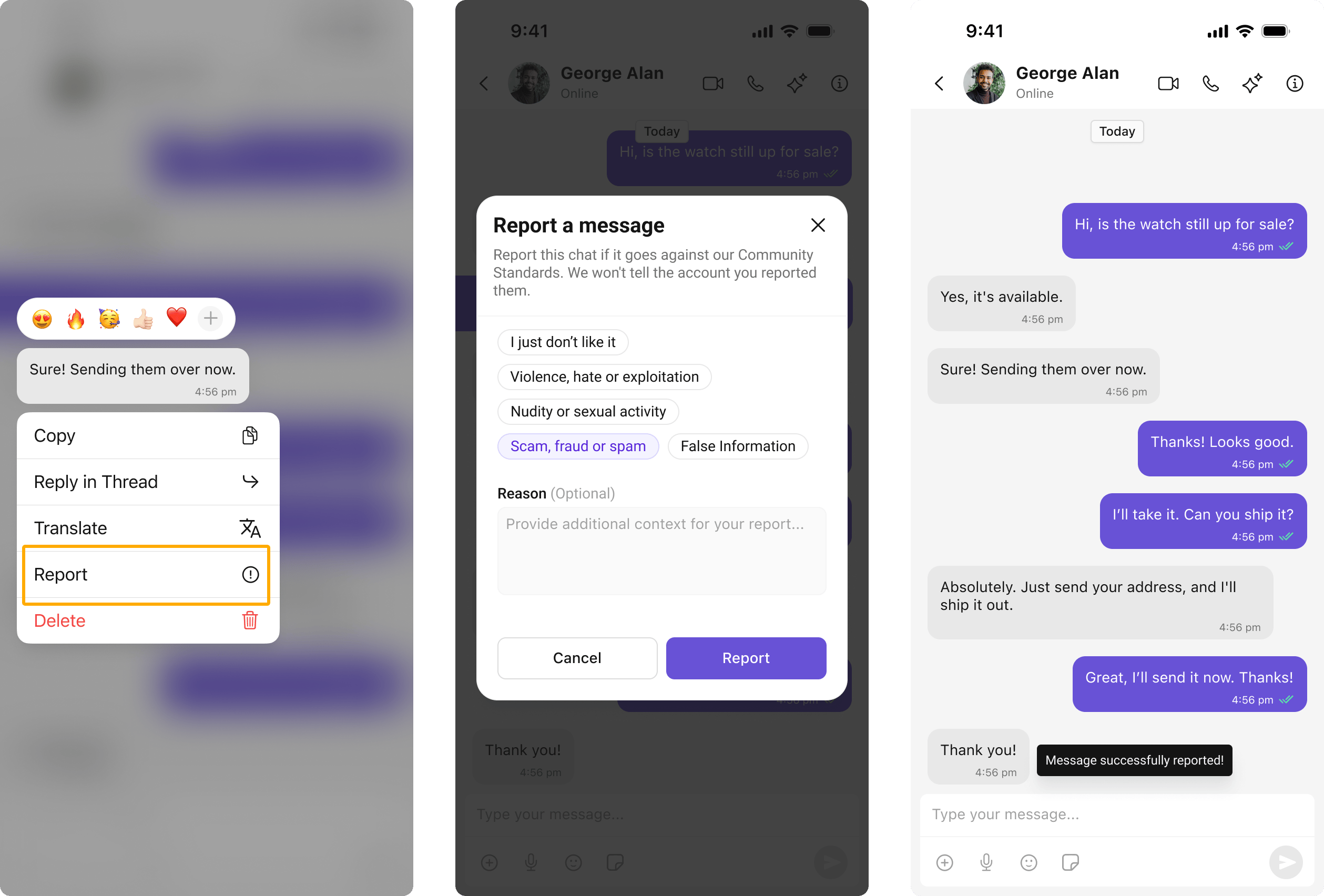
Users can report inappropriate messages by choosing from predefined reasons with optional remarks.Learn more about flagged messages in the Flagged Messages documentation.
Conversation and Advanced Search
Conversation and Advanced Search enables users to quickly find conversations, messages, and media across chats in real time. It supports filters, scopes, and custom actions, allowing users to locate content efficiently while keeping the chat experience smooth and intuitive.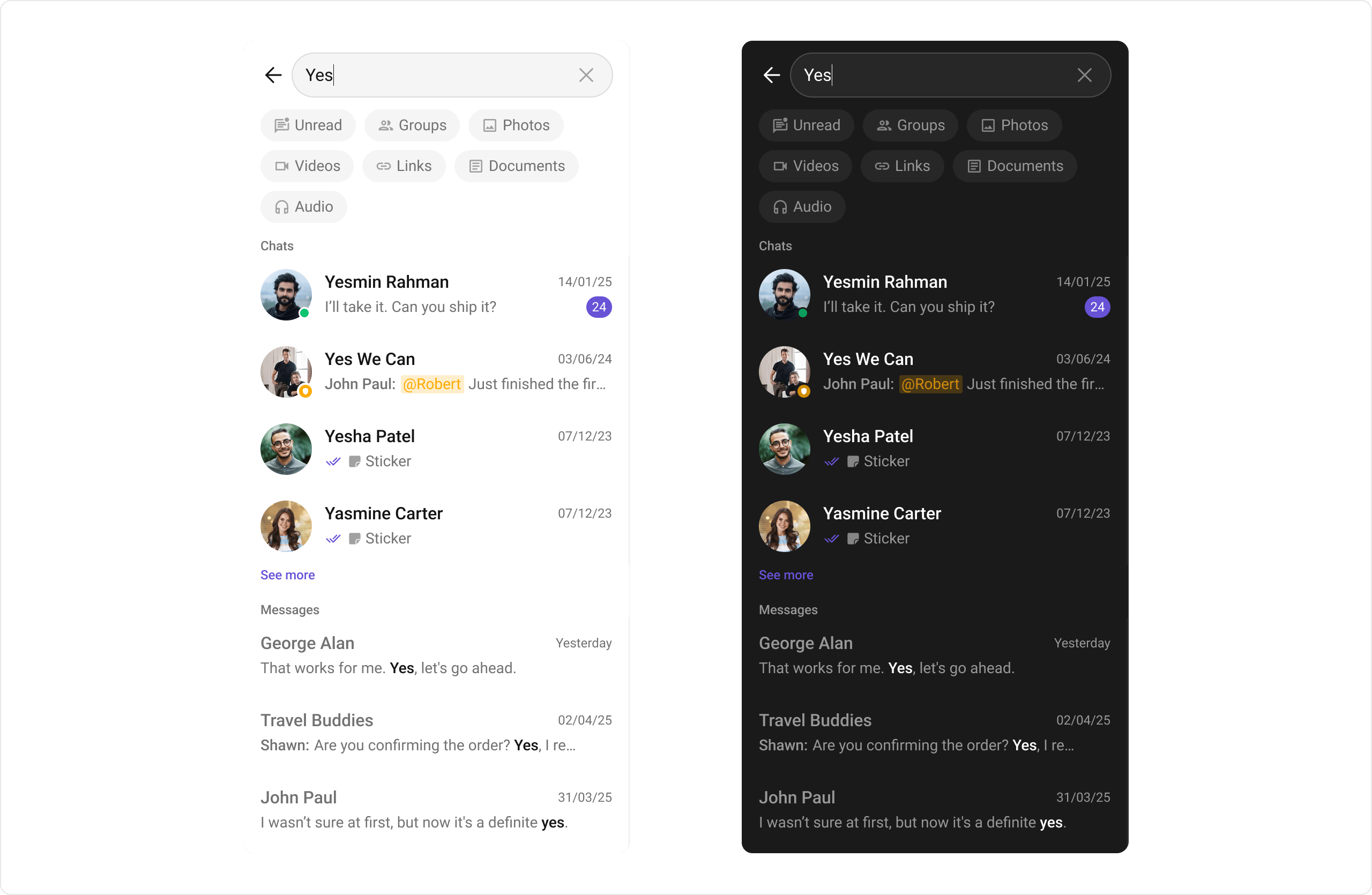
Next Steps
Components Overview
Browse all available UI Kit components
Theme
Customize the look and feel of your chat UI
Call Features
Add audio and video calling
AI Features
Explore AI-powered chat capabilities